Waze
Waze is the world's largest community based traffic and navigation app.
Perfrom any of the following methods.
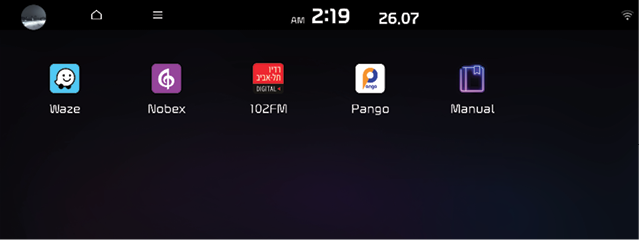
- On the All menus screen, press Waze.
- The displayed screen or menu items may differ, depending on the vehicle model and features.
- Available only when connected to a network.
Starting Waze
- In the Home screen > Press the [Waze] button.
|
|
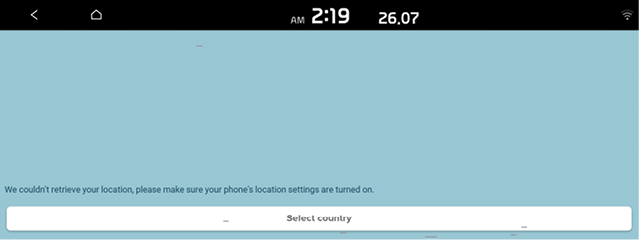
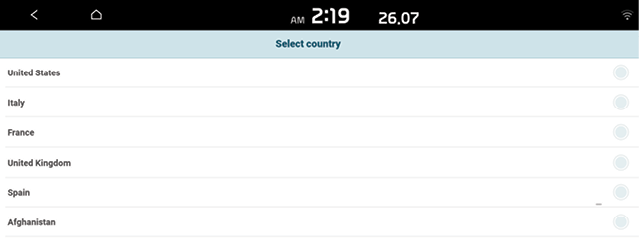
- Select desired country to download map information.
|
|
|
|
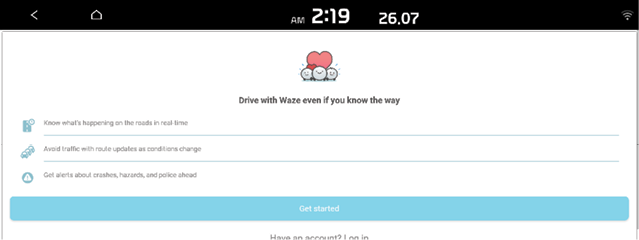
- Press the [Get Started] button > Press the [Accept] button to agree with End user license agreement.
|
|
|
|

Waze screen
|
|
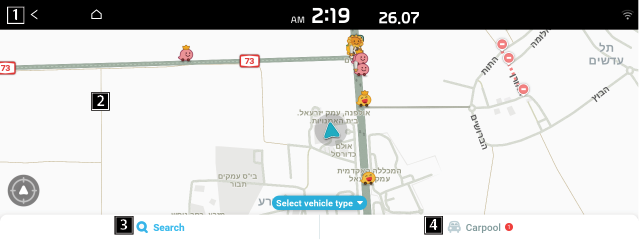
1 Returns to the previous step.
2 Displays current location and route guidance.
3 Displays the search and settings menu.
4Displays the Carpool menu.
- The screen may differ depending on the vehicle model and specifications.
Searching for Destination
- On the Waze screen, press
 button.
|
|

- Enter the keyword and press the [Search] button.
|
|
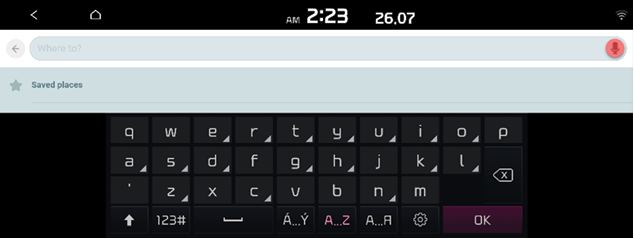
- Select the desired destination from the search results.
- Press
 button.
|
|

- Route guidance will start.
- The screen may differ depending on the vehicle model and specifications.
Waze Settings
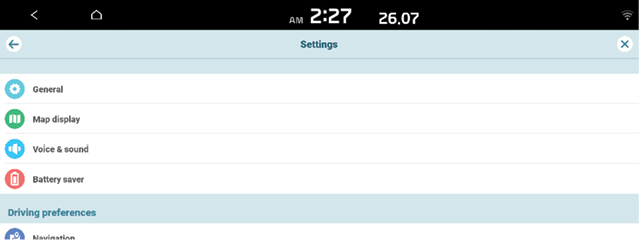
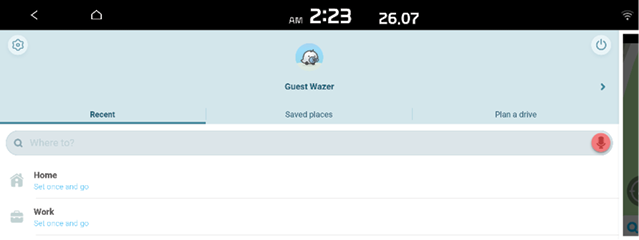
On the Waze screen, press  button > Press
  button.
You can check and change the settings for all features. For details, visit the Waze website. (https://www.waze.com)
|
|
|
|